

Yes, you can paste a YouTube link into an AI flashcard tool and get an editable deck in minutes. The one caveat that matters: always check the transcript quality and review the generated cards before you trust them, then study them with spaced repetition rather than letting them sit in a folder.
TL;DR:
- Choose manual captions when available, and convert long lectures in 10 to 15 minute segments; aim for 10 to 15 focused cards per segment.
- Before studying, correct transcript errors, split cards that test multiple ideas, and verify facts that matter for exams against the video or a textbook.
- One study found students using an app for spaced retrieval mastered new content in about one third of the time spent on traditional flashcard study.
- AI works well for factual lectures and vocabulary, but making cards manually can deepen understanding of difficult derivations and arguments.
- Add your own lecture notes or links to earlier coursework, because those personal connections create cards that transcript extraction alone cannot produce.
Table of Contents
- How a YouTube video becomes a flashcard deck
- A five-step workflow to convert a lecture video today
- Getting better cards out of the same video
- Studying the deck: spaced repetition and active recall
- How AtListen handles the YouTube-to-flashcards workflow
- Combining your own notes with AI-generated cards
- When AI conversion earns its place in your study routine
- Try AtListen: start converting your next lecture
- FAQ
- Sources
How a YouTube video becomes a flashcard deck
Converting a video into flashcards starts with the transcript. Tools pull either the video's manual captions or its auto-generated captions, and the difference shows up fast: manual captions are written or corrected by a person, while auto-captions guess at words from audio and stumble on accents, technical terms, and background noise. From there, the AI segments the transcript into chunks and pulls out definitions, facts, and examples it can turn into testable items.
What you get back depends on depth settings and subject matter:
- Question and answer cards for conceptual checks, like "What causes X?"
- Cloze deletion cards that blank out a key term inside a sentence, useful for formulas and vocabulary
- Definition cards that isolate a term and its meaning for quick recall
Card quality breaks down in predictable ways: music-heavy intros, crosstalk, heavy jargon, or a lecturer who speaks quickly can all produce garbled transcripts and, in turn, garbled cards. Knowing this in advance lets you catch problems before you start memorizing wrong information.
A five-step workflow to convert a lecture video today
Follow this sequence the first time you convert a video, and it becomes a two-minute habit afterward.
- Open the video and check captions. Look for a manually created caption track first; auto-generated captions are the fallback, not the first choice.
- Paste the URL into your flashcard tool. Choose a depth setting that matches your familiarity with the topic: lighter for review, deeper for a first pass on unfamiliar material.
- Review every card before saving the deck. Split any card that tries to test two ideas at once, and fix transcript errors you spot along the way.
- Tag and organize cards into decks, then export to Anki or sync with your tool's built-in spaced repetition system if you plan to study across devices.
- Schedule your first review within 24 hours, then set a short daily routine instead of one long cram session.
Pro Tip: Convert long lectures in 10 to 15 minute segments instead of all at once. Shorter chunks keep the AI focused on one concept at a time, which produces sharper, more specific cards.
This workflow works the same whether you are converting a single tutorial or a full semester's worth of recorded lectures. The only variable is how much editing time you budget per video, and that depends almost entirely on transcript quality.
Getting better cards out of the same video
The gap between a mediocre deck and a genuinely useful one usually comes down to a handful of habits.
- Prefer manual captions whenever they exist. If a video has none, upload your own transcript or let the tool resegment the audio rather than relying on rough auto-captions.
- Break long lectures into chunks. A single 90-minute recording summarized all at once dilutes the signal; converting it in parts keeps each card focused on one idea.
- Edit the cards you're given. Add your own example, a mnemonic, or rephrase a definition in your own words. The act of editing is itself a form of retrieval practice.
- Match card type to content. Use cloze deletions for formulas and fixed phrasing, and question-and-answer cards for anything conceptual.
- Verify facts that matter for an exam. Cross-check against the video or a textbook before you commit a card to memory.
A monograph reviewing multiple learning techniques rated practice testing and distributed practice as high-utility methods for improving student learning, which is exactly what editing and spacing out your flashcard review accomplishes (Nunes & Karpicke).
Treat the first draft as a starting point, not a finished product. A few minutes of editing per deck pays off far more than a perfectly polished AI output you never touch again.
Studying the deck: spaced repetition and active recall
Rewatching a lecture feels productive, but it rarely beats testing yourself on it. Retrieval practice and spaced repetition are rated among the highest-utility study techniques available, generalizing across ages and subjects (Nunes & Karpicke). In one study, students using an app for spaced retrieval mastered new content in about one-third of the time typically spent on traditional flashcard studying (Nunes & Karpicke).
A few practical guardrails make this easier to apply:
- Keep sessions short. Short daily sessions distributed over time beat a single long cram session.
- Aim for a moderate number of atomic cards per lecture segment. Smaller, focused cards are easier to space out and review than sprawling ones.
- Quiz yourself between segments, not just at the end. Interpolated retrieval, quizzing between chunks of a lecture rather than only afterward, improves learning of new material in both in-person and online settings (NSF-backed research).
- Review new cards promptly, then again a few days later. A spaced schedule of reviews builds durable retention without much planning.
How AtListen handles the YouTube-to-flashcards workflow
We built our YouTube to notes and flashcards workflow around the same principle this article has been making: a good transcript produces a good deck, and a good deck still needs a student's editing pass.
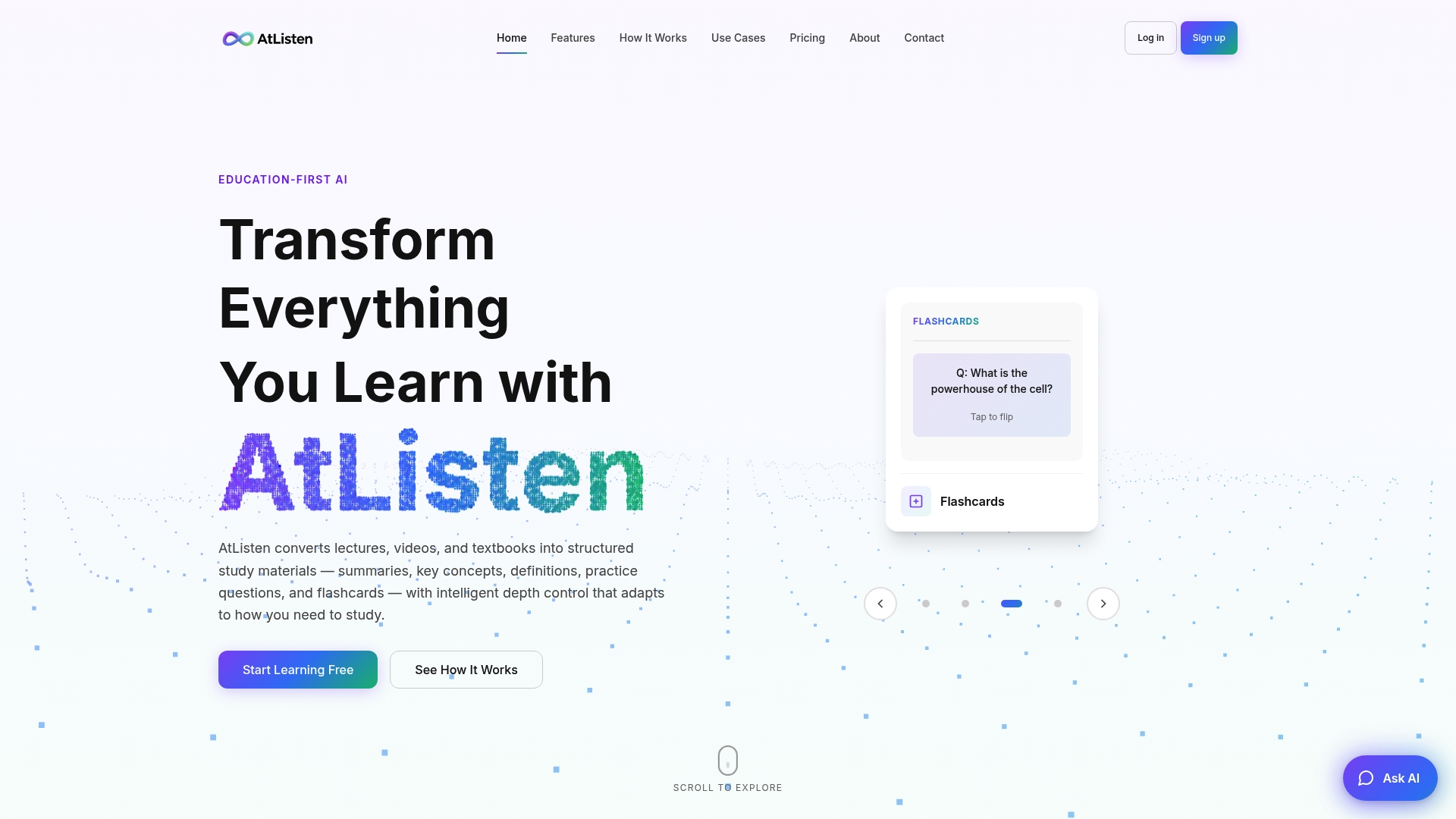
Paste a YouTube URL into AtListen and we pull the transcript, segment the lecture, and generate a full study package, not just flashcards but summaries, key concepts with definitions, and practice questions alongside them. A few features matter most for this specific job:
- Intelligent depth control lets you choose how detailed the cards are, so a first pass through unfamiliar material looks different from a quick pre-exam review.
- Support for multiple input formats means the same workflow applies to a lecture video, a PDF of slides, or your own audio recording of a study group.
- Editable cards with instant feedback let you correct, expand, or rephrase any card the moment you spot something off.
A typical session looks like this: paste the URL, generate the deck, spend a few minutes editing the rough spots, then start a spaced repetition schedule inside the app. The editing step is where retention actually improves, not the generation step.
Combining your own notes with AI-generated cards
AI-generated flashcards cover what the lecture said. They rarely capture what you thought about it while watching, and that gap is worth closing.
If you jot down highlights, questions, or your own shorthand while watching a video, feed those into the same conversion process rather than keeping them in a separate notebook. A note like "this is basically the same mechanism as last week's reading" becomes a far stronger flashcard than a generic definition pulled straight from the transcript, because it links new material to something you already know.
Practically, this means pasting your notes alongside the video URL when your tool supports mixed input, or adding a line to the relevant card right after the deck generates. Cards you annotate this way tend to stick better, since writing your own connection is itself a form of retrieval practice rather than passive acceptance of someone else's summary.

This matters most for material that builds on earlier coursework: a chemistry mechanism that echoes an earlier unit, a historical event that parallels one from last semester, a grammar rule that resembles one from a language you already studied. The AI won't know about that connection unless you tell it. Treat your highlights as the raw material for the cards an automated pass would never produce on its own, and the resulting deck ends up testing your actual understanding instead of just the video's talking points.
When AI conversion earns its place in your study routine
AI conversion is excellent for routine lecture review and vocabulary extraction, situations where the content is factual and the main task is coverage, not deep reasoning. For genuinely difficult conceptual material, a derivation you need to work through, a philosophical argument you need to pick apart, manual card creation still wins because the act of building the card forces the thinking.
Treat generated cards as a first draft. Let AI handle speed; let your own edits handle depth.
— William
Try AtListen: start converting your next lecture
If you've been copying timestamps into a notes app and building cards by hand, this is the faster route to the same result, without the hour of manual transcription afterward.
Getting started takes three steps:
- Sign up for the Free plan and paste your first YouTube URL to see the deck it generates.
- Edit the cards, then start a spaced repetition schedule the same day.
- Upgrade to paid plans when you need higher usage limits or deeper study packages across more material.
Check our plans and convert your next lecture before your next study session.
FAQ
Can you really turn a YouTube video into flashcards?
Yes, pasting a YouTube URL into an AI flashcard tool generates an editable deck in minutes by pulling the video's transcript and extracting key facts, definitions, and examples. The main variable is transcript quality, so check for manual captions before you trust the output.
What if a YouTube video has no captions at all?
If a video has no caption track, look for a tool that can transcribe the audio directly, or upload your own transcript if you have one from class notes. Without a transcript, the AI has nothing to segment, so this step cannot be skipped.
How many flashcards should one lecture produce?
A workable target is 10 to 15 atomic cards per 5 to 15 minute segment of lecture, which keeps each card focused on a single fact or concept. Longer lectures are better converted in chunks rather than all at once, since summarizing too much at once dilutes the signal in each card.
Should I edit AI-generated flashcards before studying them?
Yes, editing a card to add your own phrasing, an example, or a correction is itself a form of retrieval practice that deepens learning beyond what the raw AI output provides. Treat the first generated deck as a draft, not a finished study tool.
Can AtListen export flashcards to other apps?
AtListen lets you organize generated flashcards into decks within the platform as part of a full study package that includes summaries and practice questions. For the full list of current export and syncing options, check the plans page directly.
Sources
- Improving Students' Learning With Effective Learning Techniques: Promising Directions From Cognitive and Educational Psychology
- Interpolated Retrieval of Relevant Material, Not Irrelevant Material, Enhances New Learning of a Video Lecture In-Person and Online
- Improving Students' Learning With Effective Learning Techniques