
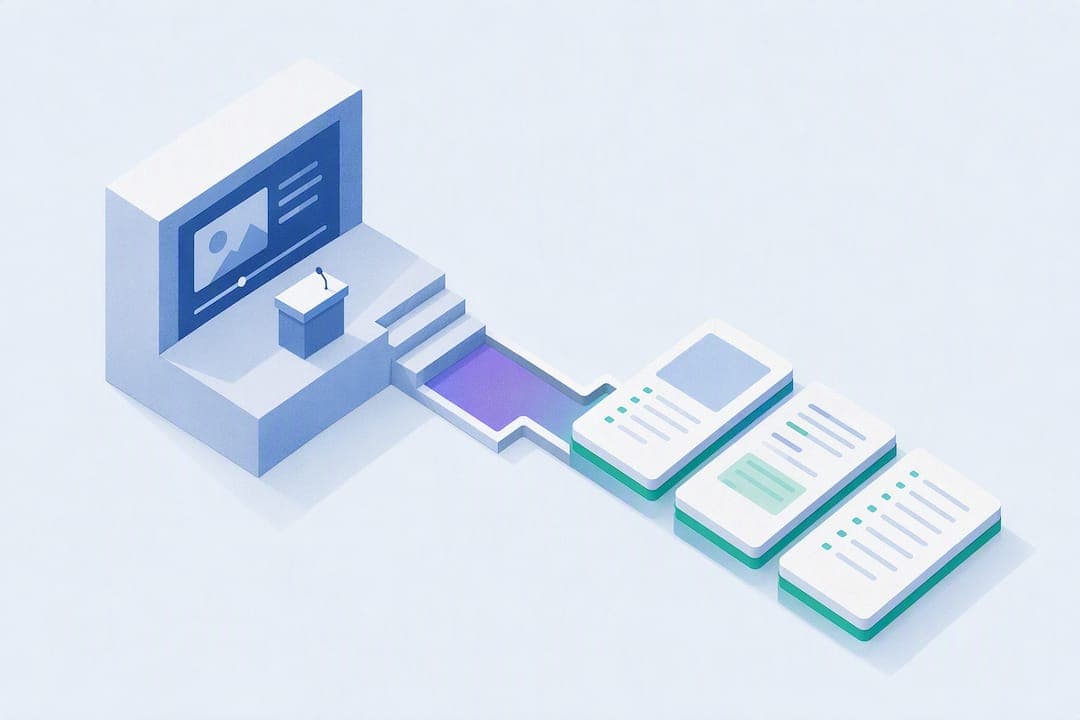
AI video-to-notes tools transcribe a lecture or tutorial, then compress that transcript into timestamped summaries, key terms, and study materials like flashcards and quizzes. For students, the payoff is direct: a 90-minute lecture becomes a reviewable document in significantly less time than watching the original. This pipeline is built specifically for study use, and research on active viewing and note-taking backs up why offloading transcription frees you to think harder about the material instead of just capturing it.
TL;DR:
- AI-generated notes are most accurate when audio is clear, with minimal accents and domain-specific vocabulary, requiring verification of key technical terms.
- Shorter clips under 15 minutes generally process quickly, often in under a minute, making it feasible to review notes before completing the original video.
- Checking the transcript for errors, especially technical terms and proper names, saves time and improves the reliability of flashcards and study materials.
- Notes automatically layered with visuals, such as slide screenshots, enhance understanding for visual learners and improve review efficiency.
- Using AI tools for active review tasks, like creating practice questions, maximizes the time saved, but critical thinking and explanation still require personal effort.
Table of Contents
- How Does Video to Notes Conversion Actually Work?
- What Outputs Do You Get From a Converted Lecture?
- How Do You Avoid AI Mistakes in Your Notes?
- How Do You Convert a Lecture Video to Notes Step by Step?
- Where AI Notes Help, and Where You Still Do the Work
- Try AtListen for Your Next Study Session
- Sources
- FAQ
How Does Video to Notes Conversion Actually Work?
The process behind converting a lecture video to notes runs through several distinct steps, even though it looks like one click to the student.
You start by uploading a file or pasting a link. Most tools accept YouTube URLs, MP4 or MOV files, and standalone audio recordings, with practical limits on file size or video length that vary by platform and subscription tier. From there, the audio gets extracted and run through speech-to-text transcription, often with speaker labels attached when multiple people are talking, which matters for seminar recordings or group discussions.
Next comes segmentation. The tool breaks the transcript into logical chunks tied to timestamps, so instead of one wall of text you get chapters that mirror how the lecture actually unfolded. This is where automated approaches to lecture note-taking show their value: reducing the manual burden of pausing, rewinding, and typing lets you focus on the content itself rather than fighting the video player.
Summarization happens on top of that segmented transcript, typically blending extractive methods (pulling key sentences verbatim) with abstractive rewriting (condensing ideas into plain language). Some platforms also capture key frames or screenshots automatically, which matters more than it sounds like for visual subjects.
The typical flow looks like this:
- Upload or paste a video link
- Wait for transcription and chaptering (often under a few minutes for standard lecture lengths)
- Review the AI-generated summary and timestamped sections
- Edit any errors or unclear passages
- Export to your preferred format
Processing speed depends heavily on video length and the platform's queue, but shorter clips generally finish quickly enough to begin review well before finishing the original at normal speed.
What Outputs Do You Get From a Converted Lecture?
Generating notes from a video usually produces more than a single document. You typically get a full transcript, a condensed summary, timestamped bullet notes broken into sections, and a list of key terms with definitions. Some tools layer in illustrated notes, pairing screenshots of slides or diagrams with the relevant transcript segment, which matters because visual note-taking research found that audio-only transcripts miss diagrams, on-screen text, and code samples that plenty of students actually need for review.
Here's what separates a useful output from a mediocre one: whether the summary is generated once and forgotten, or built to convert directly into active study tools.
- Full transcript: word-for-word text, useful for citation checks and dense technical material
- Condensed summary: the 10-minute version of a 60-minute lecture
- Timestamped notes: bullet points linked back to the exact moment in the video
- Key terms and definitions: pulled from repeated or emphasized vocabulary
- Flashcards and quick quizzes: auto-generated from the summary for immediate retrieval practice
On exports, most platforms support Markdown, PDF, and plain text, with SRT or VTT available for anyone who wants captions synced to the original video. Turnaround for a 10 to 15 minute clip typically lands in well under a minute, according to product claims from tools like Video Notes, though longer lecture recordings naturally take more processing time.
How Do You Avoid AI Mistakes in Your Notes?
Treat every AI-generated summary as a first draft, not a final answer. Language models occasionally invent details or misstate a fact with total confidence, and MIT Sloan's guidance on AI hallucinations points to timestamp linking as one of the more effective mitigations available to students. If a note claims something surprising, click the timestamp and check it against the actual video before it goes into your exam prep.
Verification does not need to be exhaustive. Focus your attention where errors do the most damage: technical terms, proper names, formulas, and dates. Transcription models frequently mangle domain-specific vocabulary, and a single garbled term can throw off an entire flashcard deck built from that section.
Pro Tip: Before generating flashcards from a summary, skim the transcript once for technical terms and correct any obvious transcription errors first. Fixing the source text takes less time than fixing every flashcard built from a bad word.
The bigger opportunity here is what you do with the time you save. Research on multimedia learning and online learning in UK schools and sixth forms suggests AI summaries work best as scaffolding for active tasks, like writing your own practice questions or explaining a concept back in your own words, rather than as a replacement for engaging with the material at all.
Before uploading any classroom recording, check your institution's policy. Videos that include other students may qualify as education records protected under FERPA, which means:
- Confirm your school or professor permits recording and redistribution
- Avoid uploading recordings where classmates are identifiable without their consent
- Check whether your institution has specific policies on third-party AI tools
How Do You Convert a Lecture Video to Notes Step by Step?
Most students can go from raw video to usable study materials in under 15 minutes for a standard lecture. The workflow breaks down into five steps:
- Pick your segment and check permissions. Identify the specific lecture, tutorial, or recording you need, and confirm you're allowed to upload it if it involves classmates or a restricted course platform.
- Upload or paste the link, then set your depth. Choose a link-based or file upload, and select how detailed you want the summary. A quick review calls for a shorter summary; exam prep calls for full depth.
- Scan the transcript for errors. Focus on technical terms, names, and numbers first, since these carry the most weight in whatever study materials get built from them.
- Build flashcards and a quiz. Convert the corrected key points into flashcards and generate a short quiz to test recall before you move on.
- Export and file it where you'll actually use it. Send the notes to Notion, Anki, or a Google Doc, whichever system you already check before an exam.
Skipping step three is the most common mistake. A five-minute correction pass now saves you from studying incorrect information later.
Where AI Notes Help, and Where You Still Do the Work
Here's the honest tradeoff: AI note tools are excellent at the part of studying nobody enjoys and nobody does particularly well under time pressure, which is capturing everything a lecturer says without missing the important parts. That's real time back in your week, and it's genuinely useful for the busy review sessions right before a midterm.

What it doesn't replace is the thinking part. Building your own practice questions, explaining a concept out loud without notes, connecting one lecture to material from three weeks ago. Those tasks stay yours because they're the actual mechanism of learning, not the transcription.
If you're trying an AI note tool for the first time, don't start with your densest, highest-stakes lecture. Pick a mid-difficulty tutorial, generate the notes, and spend ten minutes checking them against the video before you trust the workflow with something that counts.
— William
Try AtListen for Your Next Study Session
Atlisten is built specifically for students, not general transcription. Instead of a raw dump of text, you get structured study packages: summaries, key concepts with definitions, key facts, practice questions with explanations, and flashcards optimized for spaced repetition, all generated from the same lecture video, PDF, or textbook chapter you're already working from.
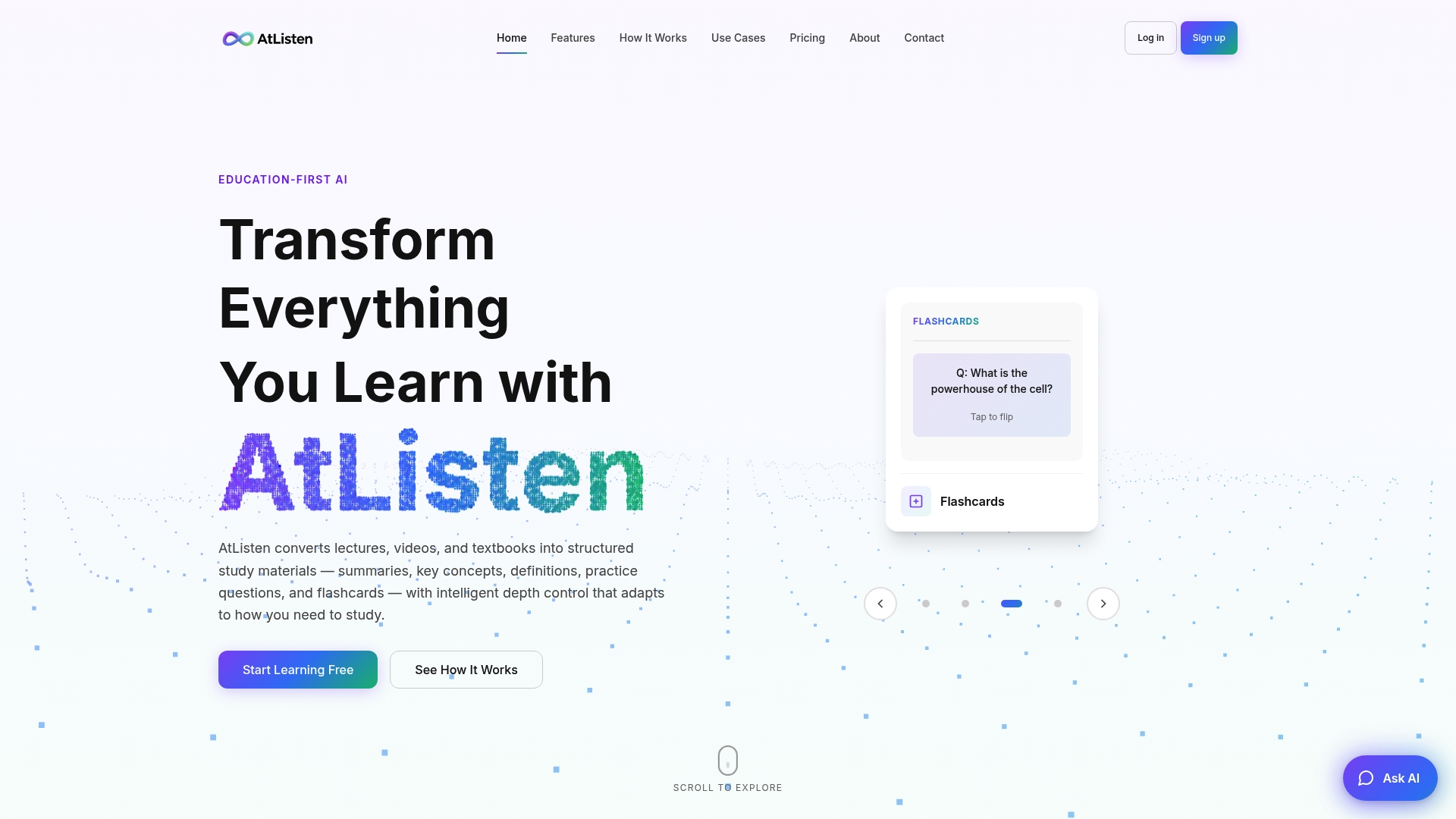
The depth control lets you choose how detailed a summary you want, whether you're doing a quick pre-class refresher or building a full exam review packet. Instant feedback on practice questions means you find out what you don't know while the lecture is still fresh, not the night before the test. Before uploading any recorded class session, check Atlisten's security and privacy details to confirm how your content is handled.
Getting started takes one upload. Visit the Atlisten landing page, drop in a video file or paste a URL, pick your summary depth, and export the results. The Free plan costs $0 per month, Pro runs $19.99 per month, and Max is $39.99 per month for higher usage limits and expanded features, all available at Atlisten.
Sources
- MIT Sloan EdTech: Addressing AI hallucinations and bias
- GazeNoter / CHI paper on assisting note-taking from lecture videos
- VideoSticker: Active viewing and visual note-taking from videos
- Student Privacy — FAQs: Photos and videos under FERPA
FAQ
What Is a Video to Notes Tool?
A video to notes tool transcribes spoken content from a video, then organizes that transcript into a timestamped summary, key terms, and other study materials. Atlisten extends this further by generating flashcards, practice questions, and personalized study plans from the same input.
How Accurate Is AI Transcription for Lecture Videos?
Accuracy depends heavily on audio clarity, accents, and technical vocabulary, with clean single-speaker audio producing the fewest errors. Domain-specific terms and proper names are the most common failure points, so checking the transcript against the original clip before building flashcards is worth the extra few minutes.
Can I Convert a YouTube Lecture Directly to Notes?
Yes. Most video-to-notes platforms, including tools built around browser-based audio extraction, accept a direct YouTube link and process it without requiring a separate download.
Are AI-Generated Study Notes Reliable Enough for Exam Prep?
They're reliable enough to use as a starting draft, not as a final, unverified source. Cross-check unusual claims, dates, and technical terms against the timestamped transcript, since hallucination risk in AI output is a known limitation even in well-built tools.
What Does Atlisten Cost?
Atlisten offers a Free plan at $0 per month, a Pro plan at $19.99 per month, and a Max plan at $39.99 per month, with higher tiers unlocking expanded features and usage limits. Full pricing details are available at Atlisten.