
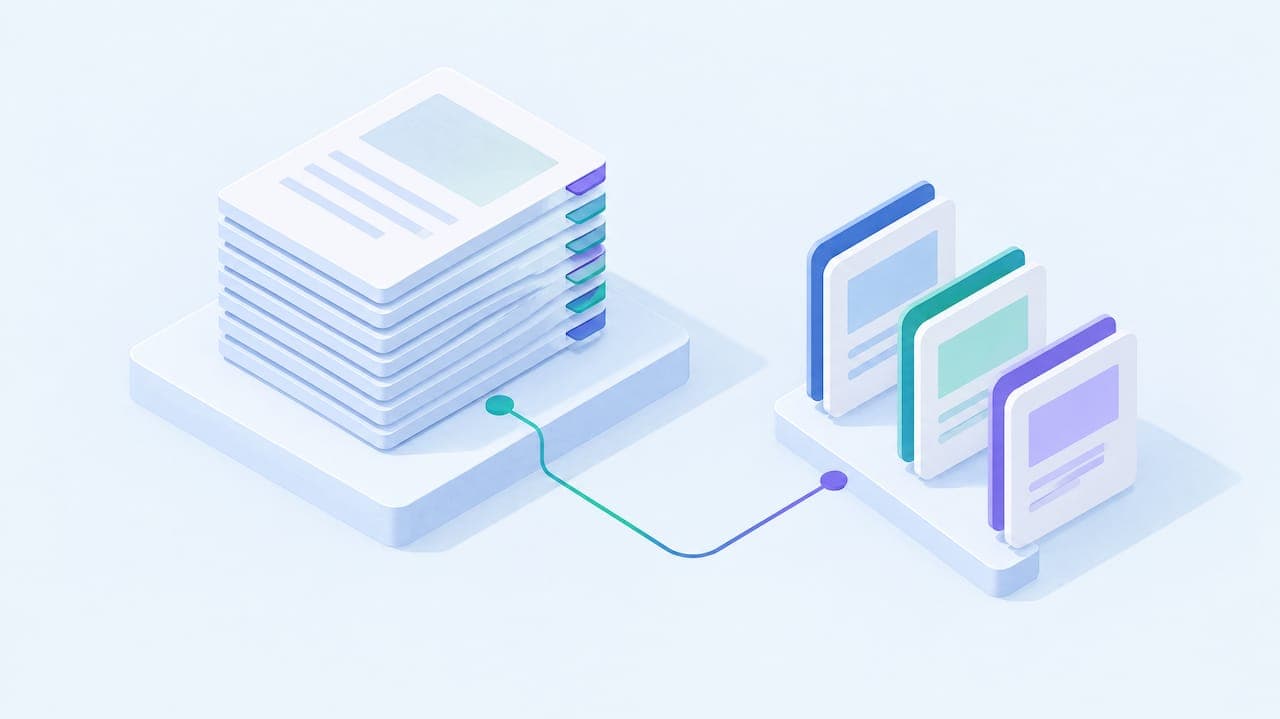
Yes, you can summarize a PDF in seconds: upload the file to an AI tool, specify the length and format you want, ask for page references, then verify the key facts against the original document. Most PDFs work well this way, but scanned pages and tables often need extra handling before the summary is reliable.
TL;DR:
- Summarize large PDFs in sections and combine summaries to avoid losing detail or exceeding context limits.
- Use specific prompts that specify length, audience, and evidence about page numbers to improve summary accuracy.
- Run OCR on scanned pages and convert tables into spreadsheets before summarizing to ensure reliable extraction.
- Always verify key facts, names, and figures against the source, especially for high-stakes decisions, to prevent hallucinations.
- Turn summaries into structured study materials with definitions and practice questions to enhance retention and review.
- ✓Summaries
- ✓Key concepts and definitions
- ✓Practice questions
- ✓Flashcards
Table of Contents
- Step-by-step workflow to summarize a PDF with AI
- Prompt templates that produce traceable summaries
- Handling large PDFs, scanned pages, and tables
- Verify and avoid hallucinations
- How AtListen turns PDF summaries into study-ready materials
- When a quick summary is enough and when it isn't
- Try AtListen for study-ready summaries, flashcards, and practice questions
- FAQ
- Sources
Step-by-step workflow to summarize a PDF with AI
Before you upload anything, check whether the PDF's text is selectable. If you can highlight words in a PDF viewer, the text layer exists and an AI tool can read it directly. If you can't select text, the file is likely a scanned image, and you'll need to run OCR (optical character recognition) or export the text first, otherwise the tool has nothing to read.
Once the text is usable, follow this sequence:
- Check the file type. Confirm the text is selectable; if not, run OCR before uploading.
- Split large documents. Break large documents into smaller sections or chapters to maintain summary accuracy.
- Upload and specify your request. Tell the tool the length, audience, and structure you want instead of asking for "a summary."
- Request citations. Ask for page numbers and, where it matters, exact quoted text.
- Verify. Spot-check names, dates, and figures against the source before you rely on the output.
OpenAI's own guidance on optimizing large file uploads recommends this kind of staged approach: inspect smaller sections, summarize each one, then combine those into a summary-of-summaries rather than assuming a model processed every page with equal attention. That matters most for theses, long reports, or multi-chapter textbooks, where a single prompt covering 200 pages tends to flatten detail from the middle of the document. Treat the upload-and-ask step as the start of the process, not the finish.
Prompt templates that produce traceable summaries
A vague prompt gets a vague summary. The difference between a usable output and a mushy one is almost always in how specific the request is: length, audience, structure, and evidence requirements all belong in the prompt, not left for the AI to guess.
A few templates worth copying directly:
- Research summary: "Summarize this PDF in eight bullet points. Identify the thesis, methods, key findings, limitations, and page numbers. Preserve all names, dates, and numerical values; mark anything uncertain."
- Executive summary: "Write a two-paragraph executive summary for a non-specialist audience. Include the three most important figures and the page number where each appears."
- Study notes: "Summarize this chapter as study notes, then write ten flashcard-style prompts covering the key definitions, each tagged with its page number."
Each template works because it names the audience, caps the length, and demands page-level evidence rather than a loose paraphrase. OpenAI's file upload documentation lists summarizing a complicated research paper as a standard supported task, but the quality of the result still depends on how precisely you frame the request.
Pro Tip: When a summary glosses over a detail you need, don't accept the first answer: ask a follow-up that names the exact page or section and requests the original wording.

Handling large PDFs, scanned pages, and tables
Long documents, scanned pages, and data-heavy tables each break AI summarization in a different way, so each needs its own fix.
- Chunk large files. Summarize each section separately, then ask for a summary-of-summaries that ties the pieces together, a method OpenAI recommends specifically to avoid losing information to context limits in long or multi-file uploads.
- OCR scanned or image-based pages. If a page is a photograph of text rather than real text, run OCR first; charts and diagrams usually need to be described or transcribed separately, since image content is skipped on many plans.
- Export tables before trusting numbers. Convert tables to CSV or copy the raw numbers into your prompt. Image-based tables are where extraction errors are most common, and automated readings of scanned tables are not reliable enough for a grade-dependent or financial figure.
Verify and avoid hallucinations
Abstractive summarizers can produce fluent, confident sentences that are simply wrong, particularly around names, dates, and quantities. Research from the University of Pennsylvania on faithfulness in abstractive summarization documents this pattern directly: even well-performing systems introduce entity and quantity errors that post-processing can reduce but not eliminate. That's the core reason verification isn't optional for academic or professional use.
A short checklist covers most of the risk:
- Ask for a page-level reference for every named entity, date, or figure the summary states as fact.
- Spot-check at least the two or three claims your argument depends on most.
- Treat a single abstractive sentence as a lead, not proof: find the line it's based on.
- When a number or quote matters, paste the exact excerpt back into your PDF viewer and confirm it appears on the page cited.
A fluent summary and an accurate one are not the same thing, and the gap only shows up when you check.
How AtListen turns PDF summaries into study-ready materials
Summarizing a PDF is often just the first step before studying it. We built AtListen to take that next step: turning PDFs, along with lectures, textbooks, and other materials, into structured study outputs rather than a single block of text.
- We generate summaries alongside key concepts with definitions, practice questions with explanations, and flashcards.
- We let you adjust the depth of each output and get instant feedback, creating study packages that enhance the review process.
That structure matters most when a plain summary leaves you with information but no way to practice recalling it.
When a quick summary is enough and when it isn't

A fast AI summary is fine for comprehension, pre-reading before class, or getting oriented in a long report. Nobody needs page citations to decide whether a chapter is worth reading closely.
The threshold changes once the summary feeds a grade, a citation, or a decision with money or legal weight attached. At that point, verify names, numbers, and quotes against the source before you use them, and quote the original text rather than the AI's paraphrase. The rule of thumb: the higher the stakes of being wrong, the more of the original document you should personally check.
— William
Try AtListen for study-ready summaries, flashcards, and practice questions
Summarizing a PDF saves time, but turning that summary into something you can actually study and remember is a separate problem, and it's the one we focus on. If you're short on time, juggling a stack of readings, or just need a chapter organized into something reviewable before an exam, we convert it into summaries, key concepts, and practice questions in one pass.
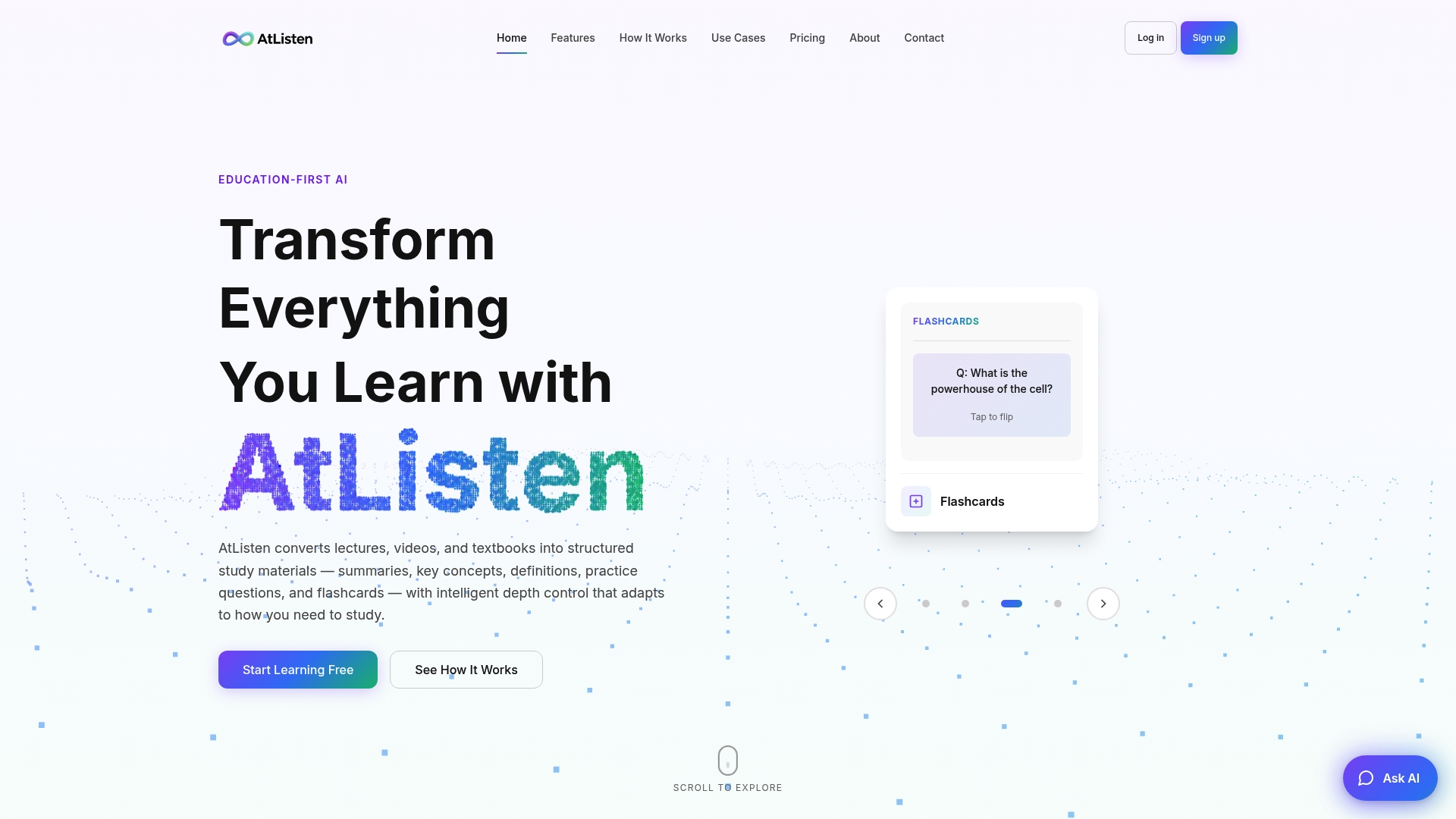
- We offer various plans so you can start with the basics and upgrade as your workload grows.
- Upload a PDF and see your study package take shape in minutes.
FAQ
How can I summarize a PDF file?
Upload the PDF to an AI tool that accepts document uploads, then ask for a specific length, structure, and audience rather than a generic summary. Request page references for any names, dates, or figures so you can verify them against the original text.
How can I summarize a PDF document?
The process is the same for any document type: check that the text is selectable, upload it, and specify exactly what you want, such as an eight-bullet summary with page numbers. For long documents, summarize sections individually and then combine those into a shorter overview.
Can ChatGPT summarize a PDF?
Yes, ChatGPT supports uploading PDFs and can summarize research papers and other documents, according to OpenAI's own guidance. Availability and accuracy vary by plan, and scanned pages or complex visual layouts are less reliable than standard text-based PDFs.
Can ChatGPT analyze PDFs?
ChatGPT can answer questions about uploaded PDFs and extract information beyond a simple summary, but extraction from scanned pages or image-based tables can be unreliable. For exact numeric values, OpenAI recommends exporting tables to a spreadsheet rather than trusting automated extraction from an image.