
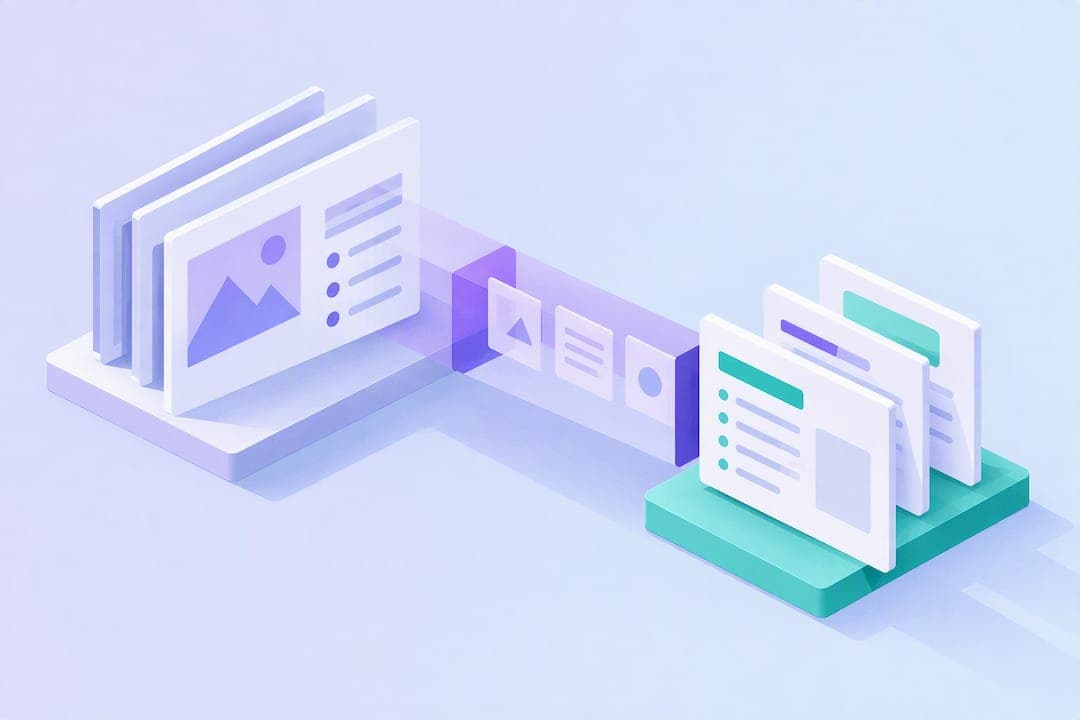
You can turn a PowerPoint into study-ready notes in under a minute using AI. Upload your PPTX (or PDF) to a converter, pick an output style like summary, bullets, Cornell notes, or flashcards, and let the tool generate editable notes you export to Word, Markdown, or PDF. That covers the mechanics. The part that actually determines your grade is what you do after the export: pairing the AI draft with an active-recall pass, not treating the output as finished.
TL;DR:
- AI tools produce quick initial notes, but these require manual rewriting and verification to ensure retention is maximized.
- Speaker notes are often omitted in conversion if not included explicitly in PowerPoint's notes pane, so checking and exporting them properly is essential.
- Selecting the right output style—such as flashcards for memorization or Cornell notes for active recall—significantly impacts review effectiveness.
- Raw AI summaries or bullets are only a starting point; human editing improves question quality and accuracy, especially for formulas and key details.
- Using AI as a first step saves time, but active review and rewriting are necessary for these notes to serve as effective study tools.
Table of Contents
- How to Convert PowerPoint to Notes, Step by Step
- Which Note Style Fits Your Slides?
- Do Converters Read Speaker Notes or Just Slide Text?
- Prepping Slides and Editing AI Output for Real Study Use
- What the Research Says About AI Summaries and Retention
- My Take: Treat the AI Draft as Step One, Not the Finish Line
- Turn Your Next Lecture Into a Study Package in Minutes
- Sources
- FAQ
How to Convert PowerPoint to Notes, Step by Step
The workflow is nearly identical across most AI note tools, but a little prep saves you from garbled output later.
- Prepare the file. If your lecture lives in Google Slides, export it as PPTX first. Open the Notes pane in PowerPoint and confirm the speaker actually typed anything there, since speaker notes live separately from the visible slide text and some tools skip them entirely.
- Choose extraction or summarization. Extraction pulls slide text verbatim, which is fine for a quick reference sheet but leaves you rereading dense bullet lists. AI summarization condenses and restructures the same content into prose, bullets, or Q&A pairs, which works better for actual review.
- Pick your export format. Most converters support Word, Markdown, plain text, and PDF, and several offers a flashcard or Q&A export built for spaced-repetition apps.
- Fix common snags on the spot:
- Missing speaker notes: re-export the deck using File > Export > Create Handouts in PowerPoint, or paste the transcript separately.
- Charts and diagrams with embedded text: add a one-line caption before uploading so the AI doesn't guess at the image.
- Tables that render as scrambled text: reformat as a simple grid or retype key values before conversion.
If you'd rather skip manual note generation altogether, Microsoft Copilot can draft speaker notes directly inside PowerPoint, though it works best on decks under roughly 50 slides and still needs a human read-through before you trust it.
Which Note Style Fits Your Slides?
The same slide deck can become five different study tools depending on the output format you choose, and picking the wrong one wastes the conversion.
- Summary: Best for a fast pre-exam refresher. Condenses each slide's main idea into a sentence or two, dropping supporting detail.
- Bullet points: Keeps more structure than a summary. Good when a slide already lists steps, criteria, or comparisons you need intact.
- Cornell notes: Splits the page into cues, notes, and a summary strip, which forces you to generate your own recall questions later. Structured formats like this outperform unstructured copying for engagement.
- Flashcards: Converts definitions, dates, or formulas into question-and-answer pairs, ideal for spaced repetition.
- Study guides: Combines summaries, key terms, and practice questions into one longer document for deep exam prep.
A slide titled "Causes of Inflation" with four sub-bullets might become one summary sentence, four separate flashcards, or a single Cornell cue-and-note pair, depending on which style you pick.
Pro Tip: Export flashcards as CSV or cloze-deletion format so you can import them straight into Anki or Quizlet instead of retyping every card by hand.
Do Converters Read Speaker Notes or Just Slide Text?
Speaker notes and slide text are two different data fields in a PowerPoint file, and that distinction trips up a lot of students. The bullets on a slide are usually a skeleton; the notes typed underneath often carry the professor's actual explanation, examples, and caveats. Microsoft documents this separation clearly, and it matters because many converters only scan the visible slide, not the Notes pane.
Before you upload, run this quick check:
- Open the Notes pane in PowerPoint (View > Notes) and see if there's actually content worth capturing.
- If there is, export with notes included, or paste them as a separate text block into the converter.
- If a slide leans on a chart or diagram, add a short caption or alt text describing what it shows, since AI tools summarize images poorly without that hint.
- No notes at all? Ask for the presenter's transcript or recording if one exists.
Prepping Slides and Editing AI Output for Real Study Use
Clean input produces clean notes. Messy slides produce notes you have to fix twice.
- Before conversion: Use clear, descriptive slide titles instead of "Slide 12," keep bullet formatting consistent, and paste in speaker notes wherever they exist.
- During conversion: Match the output style to your actual study plan. Cornell notes for a class you'll review multiple times; flashcards for anything you need to memorize cold, like vocabulary or formulas.
- After conversion: Add worked examples the AI compressed away, double check any equation or formula, and tag each note with its original slide number so you can cross-reference the deck fast.
A workflow that scales well across a semester: export from the converter into Word, drop the cleaned notes into Notion or Obsidian for organization, then push the flashcard-ready sections into your spaced-repetition app.
Pro Tip: Do one editing pass, not five. Perfectionism on note formatting eats the time you should be spending on active recall instead.
What the Research Says About AI Summaries and Retention
AI-generated notes speed up your first read of a slide deck, but speed and retention aren't the same thing. A 2025 randomized school experiment found that students who took notes, whether alone or alongside LLM use, retained more than students who relied on the LLM alone, even though students preferred using the AI. The tool made comprehension feel easier without necessarily making the material stick.
There's also a quality gap in the notes themselves. A 2023 study on rewriting bullet-point notes into full summaries found that Bull2Sum-style rewrites produced better question-answer pairs than raw automatic summaries, and human-written summaries still beat both. Raw AI bullets are a rough draft, not a finished study tool.
The practical fix: let AI do the first-pass condensation, then rewrite key sections in your own words and check every formula, date, and worked example by hand before you trust it on an exam.
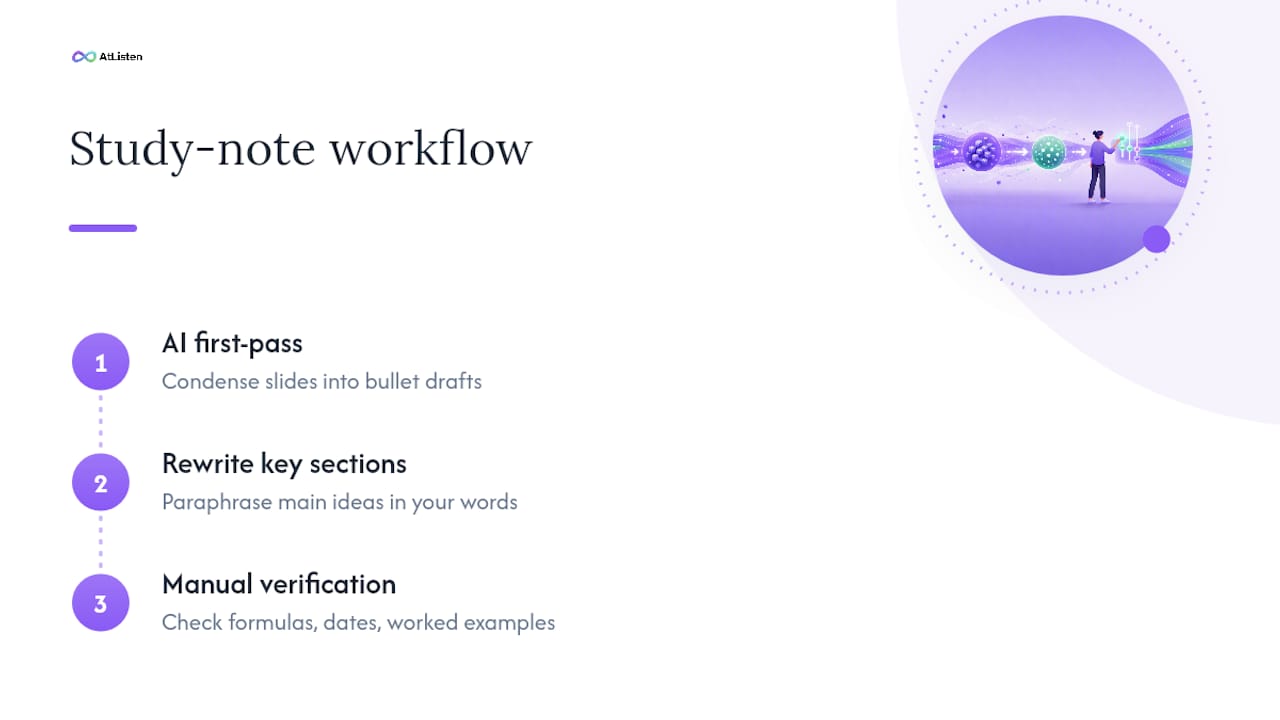
My Take: Treat the AI Draft as Step One, Not the Finish Line
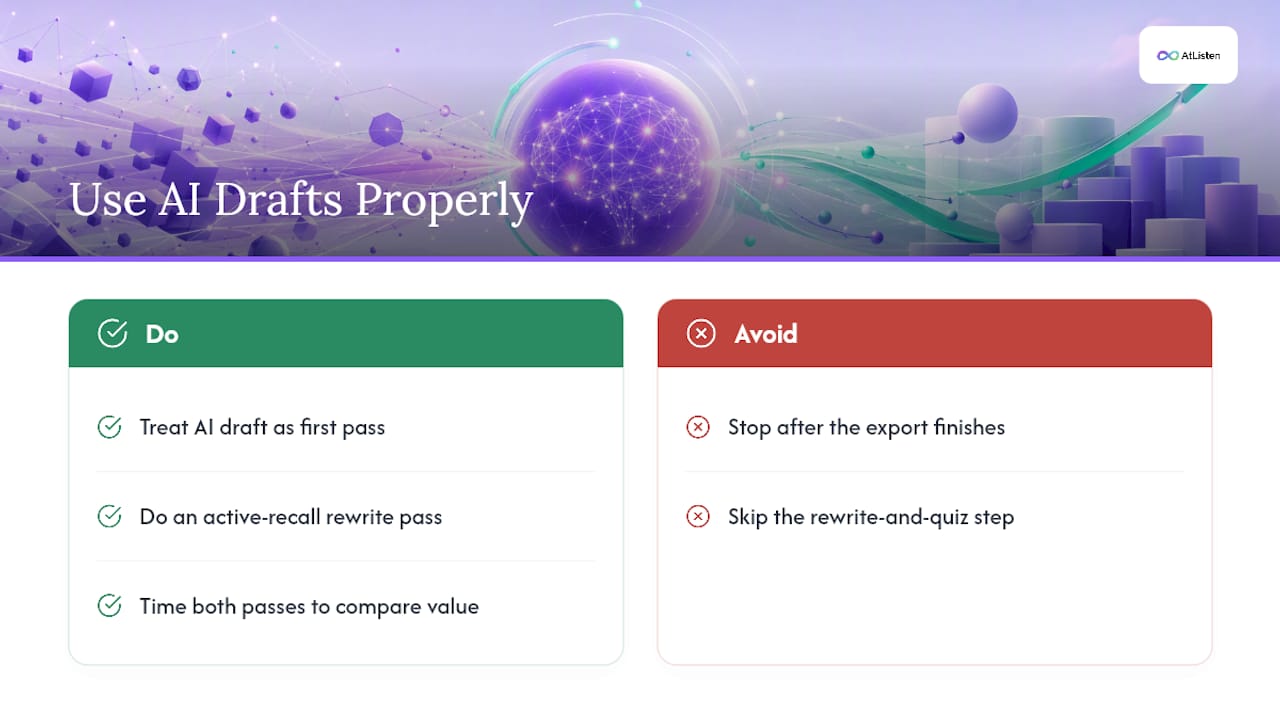
The biggest mistake I see students make isn't picking the wrong note style. It's stopping the moment the export finishes. AI-generated notes are a strong first draft, not a substitute for the rewrite-and-quiz-yourself pass that actually cements material in memory.
The approach leans into that: fast conversion for the first pass, then depth control and instant feedback so you can push past summary and into actual recall. Try converting one lecture, then run one active-recall pass on it. Time yourself both ways and you'll feel exactly how much the second step is worth.
— William
Turn Your Next Lecture Into a Study Package in Minutes
This approach skips the multi-tool shuffle of converting slides one way and building flashcards another. Upload a lecture deck, PDF, or recording, and you get summaries, key concepts with definitions, practice questions, and spaced-repetition flashcards in one pass, with depth control so you decide how detailed the output gets.
Getting started costs nothing: the Free plan lets you convert your first slides and see the output styles before you commit to anything. If you're regularly converting dense decks or want higher usage limits, Pro runs $19.99 a month and Max runs $39.99 a month, both through Atlisten. Students uploading school materials, including those studying under 13, can check how their files are handled on the security page or the COPPA policy before uploading anything sensitive. Convert your next lecture and see what a finished study package actually looks like.
Sources
FAQ
Can AI Really Convert a PowerPoint Into Study Notes?
Yes. AI tools read the text (and often the speaker notes) in a PPTX or PDF, then restructure it into summaries, bullets, Cornell notes, or flashcards. Atlisten handles this by letting you set the depth and output format before generating the study package.
Does Converting PPT to Flashcards Work Better Than Making Them Manually?
AI-generated flashcards give you a faster starting deck, but research on rewriting notes into fuller summaries shows that a quick human editing pass improves question quality over raw automatic output. Use the AI draft, then tighten wording and verify any formula-based cards yourself.
Why Don't My Speaker Notes Show Up in the Converted Notes?
Many converters only scan visible slide text and skip the Notes pane entirely. Check that notes exist in PowerPoint's Notes view, then export with notes included via File > Export > Create Handouts before uploading.
Is It Safe to Upload Lecture Slides to an Online Converter?
It depends on the tool's data handling: some process files locally in your browser, others store them server side, so check the retention policy before uploading anything sensitive. Atlisten publishes its data practices on its security page.
What Does Atlisten Cost to Convert Slides Into Notes?
Atlisten's Free plan costs $0 per month, with paid tiers at $19.99 per month for Pro and $39.99 per month for Max, both listed on Atlisten. The free tier is enough to test summary, flashcard, and Cornell-style outputs before upgrading.