
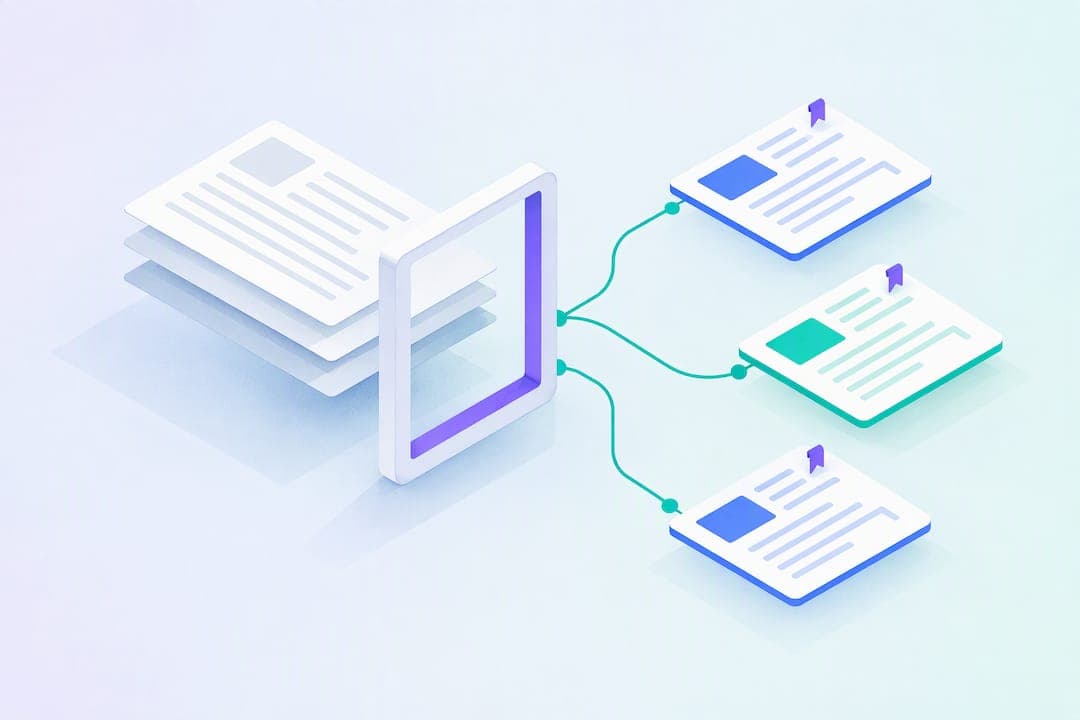
AI tools can now convert a PDF into structured notes, flashcards, and practice questions in a few minutes, not hours. The catch is that raw output isn't the finish line: upload the file, demand page-level citations for anything you plan to memorize, and push the results into retrieval practice instead of just rereading them. Tools like AtListen are built around that exact loop for students working through dense course material.
TL;DR:
- Most PDF-to-notes tools produce summaries, hierarchical outlines, flashcards, and practice questions, with accuracy heavily dependent on OCR quality, especially for scanned documents.
- Verifying that each key claim links to a specific page ensures factual accuracy, which is critical because AI models cannot detect OCR errors or ambiguous source material.
- Data privacy depends on clear policies; trusted tools specify storage duration, data use, and whether files are processed locally or sent to third-party servers.
- For technical or non-English PDFs, high-resolution scans and manual checks improve OCR accuracy, and extracting visual elements separately enhances understanding of complex data.
- Using retrieval practice with spaced repetition significantly outperforms rereading or highlighting, making generated notes more effective when incorporated into a disciplined study routine.
Table of Contents
- What You Actually Get From a PDF-to-Notes Tool
- How Do You Turn a PDF Into Study Notes Step by Step?
- Why Retrieval Practice Beats Rereading Your Notes
- How Do You Choose a PDF-to-Notes Tool?
- Does It Work in Other Languages, and What About Scanned PDFs?
- What Happens to Your PDFs After You Upload Them?
- Getting Cleaner Extraction Out of a Messy PDF
- How Do Popular PDF-to-Notes Tools Compare?
- How AtListen Fits Into This Workflow
- Get Started With AtListen
- Sources
- FAQ
What You Actually Get From a PDF-to-Notes Tool
Most PDF to notes tools generate a handful of predictable formats, and knowing what to expect up front saves you from re-uploading the same file three times.
- A short summary that condenses the main argument or findings into a few paragraphs
- A hierarchical outline that mirrors the document's headings and subheadings
- Flashcards with question-and-answer pairs pulled from key terms and definitions
- Key-concept lists with plain-language definitions
- Practice questions, sometimes with explanations, tied back to specific pages
File support varies more than people expect. A clean, text-based PDF processes fast and accurately. A scanned PDF, like a photographed textbook chapter, needs optical character recognition (OCR) before any AI model can read it, and OCR quality directly determines how clean your notes turn out. Tables and figures often need separate extraction, since a language model reading raw text can miss what a chart is actually showing. Export formats typically include DOCX, Markdown, and CSV for flashcards, which matters once you want to move notes into another app.
How Do You Turn a PDF Into Study Notes Step by Step?
The workflow is the same whether you're processing a 12-page journal article or a 300-page textbook. Skipping steps is exactly how errors slip into your flashcards.
- Prepare the file. Run OCR on scanned pages, strip out appendices or references you don't need, and split anything over a few hundred pages into chapters. Clean input is the single biggest factor in clean output, since OCR quality determines extraction accuracy before summarization even starts.
- Upload and choose your outputs. Set summary length, turn on flashcard generation, and decide whether you need tables and figures preserved. Most academic processing pipelines follow this same sequence: OCR, then chunking, then attribution to a source, then summarization.
- Verify before you trust it. Check that every key claim links back to a specific page. If a tool can't show you where a fact came from, treat that fact as unverified. This step matters more than any other, because factually faithful summarization depends on grounding outputs in the source text rather than letting a model generate freely.
- Edit, structure, and export. Add your own headings, tighten vague definitions, and reorganize sections that don't match how your course actually covers the material. Then export into your note-taking or flashcard app of choice.
Pro Tip: When you're working through technical material like a chemistry or engineering PDF, pull the figures and tables out first and annotate them by hand before generating flashcards. AI models frequently describe a graph inaccurately when they're reading it as plain text instead of as an image, so treat visual data as a separate step.
Why Retrieval Practice Beats Rereading Your Notes
Generated notes are only useful if you study them the right way, and most students default to the wrong way. A wide body of research on learning techniques found that rereading and highlighting produce weak, short-lived gains compared with two methods: retrieval practice and spaced practice.
Retrieval practice means testing yourself on material instead of just reviewing it. Spaced practice means spreading that testing across multiple sessions instead of cramming the night before.
Both techniques show up consistently as the highest-utility strategies across dozens of experimental studies, largely because forcing your brain to retrieve information strengthens memory more than passive exposure ever does. This is exactly why raw AI-generated summaries aren't the goal. They're the raw material.
Here's how to convert them into something that sticks:
- Turn every summary section into three or four self-test questions before you look at the answer
- Push flashcard review into short daily sessions instead of one long session before an exam, since spacing study across time improves long-term retention over massed cramming
- Use AI-generated practice questions as low-stakes retrieval drills, not graded assessments
- Cross-check any fact you're about to memorize against the source page before it becomes a flashcard
Students consistently default to rereading and highlighting even when they know better techniques exist, which is worth remembering the next time you're tempted to just skim your notes one more time. If a flashcard's answer sounds slightly off from what your professor said in lecture, don't build your study session on a guess. Confirm it, then commit it to memory.
How Do You Choose a PDF-to-Notes Tool?
Not every tool marketed at students handles the same job equally well, and the differences show up fastest when you're under exam pressure. Before you commit to a subscription, run through this checklist.
- Page-level citations or source grounding. Can you click a claim and see exactly which page it came from? Without this, you're trusting a black box.
- OCR quality. Test it on a scanned page you already know well. If the extracted text is garbled, everything downstream will be too.
- Multimodal extraction. Does it preserve tables and figures, or does it just describe them in vague prose? This matters most for STEM material.
- Export flexibility. Can notes and flashcards move into the apps you already use, or are you locked into one ecosystem?
- Privacy and data retention. Where are your uploaded files stored, and for how long?
- Pricing model. Is there a usable free tier, and what triggers an upgrade?
Ask any vendor directly: where are files stored, can I get page citations, what are the file and page limits, and how do you prevent hallucinations? A vague or evasive answer on any of these is a red flag. So is a tool with no citation feature at all, an opaque privacy policy, or no meaningful export options beyond a locked-in app.
Does It Work in Other Languages, and What About Scanned PDFs?
OCR accuracy drops the moment you move away from clean, typed English text, and that gap widens further with non-Latin scripts, handwriting, or low-resolution scans. A PDF that was photographed on a phone in dim lighting will produce noticeably worse extracted text than one exported directly from a word processor, regardless of which AI tool processes it afterward.
Language support varies by tool, but most modern systems handle major European and Asian languages reasonably well for typed text. The weak point is almost always the scanning step, not the summarization step. If OCR misreads a word or garbles a sentence, the AI model summarizing that text has no way to know the mistake happened. It will confidently summarize the error.
A few practical habits reduce this risk substantially. Scan at a higher resolution when you have the choice, since low-DPI scans are the single biggest cause of OCR errors. Where possible, use a PDF that was exported digitally rather than photographed, and if you're working in a language with complex diacritics or a non-Latin script, run a quick manual check on a sample page before trusting the full output. OCR quality checks before summarization catch most of these issues early, before they propagate into dozens of flashcards.
If you're studying in a second language, treat your generated notes with extra scrutiny for the first few pages. Once you confirm the OCR is reading your specific document accurately, the rest of the file will typically follow the same pattern.
What Happens to Your PDFs After You Upload Them?
Uploading a PDF means sending potentially sensitive material, lecture slides, personal notes, sometimes even medical or legal readings, to a third-party server. That's worth pausing on before you drag and drop a file into any tool.
Look for a clear, specific privacy policy rather than a vague statement about "protecting your data." A trustworthy tool will tell you plainly whether files are stored after processing, whether they're used to train future models, and how long data sits on their servers before deletion. AtListen's security practices lay out exactly this kind of detail, which is the standard every tool in this category should be held to.
If you're a minor, or a parent managing a younger student's account, check whether the platform has a specific policy for users under 13. In the United States, this falls under the Children's Online Privacy Protection Act (COPPA), and a legitimate education tool should have a dedicated COPPA policy rather than treating every account the same way regardless of age.
Beyond storage, ask how the tool handles the actual processing pipeline. Does it send your file to a third-party AI provider, or process it within its own systems? Is the connection encrypted? These aren't paranoid questions. Students routinely upload research papers under embargo, personal health information from a nursing program, or unpublished thesis drafts, and the privacy stakes are higher than a casual "just checking my textbook" upload might suggest.
Getting Cleaner Extraction Out of a Messy PDF
The quality of your notes depends heavily on the quality of the PDF you feed in, and a few minutes of prep work before uploading pays off across every output that follows.
Start by checking whether your file is text-based or scanned. Open it and try to highlight a sentence. If you can select text normally, you're working with a text PDF and extraction will be fast and accurate. If highlighting does nothing, it's a scanned image, and it needs OCR before any summarization tool can read it properly.

Strip out material that won't help your study session: cover pages, tables of contents, blank pages, and appendices you won't be tested on. Every extra page adds noise and, in tools with page limits, eats into your quota for material that actually matters. If you're working with a textbook chapter bundled inside a much larger file, split it out first rather than uploading the whole book.
For technical material, consider pulling tables and figures into a separate pass. Multimodal extraction pipelines that preserve tables and figures rather than converting them to plain text produce noticeably better comprehension for anything data-heavy, like a statistics course packet or a lab manual. If your tool doesn't handle this well, extract the visual elements yourself and annotate them before generating flashcards from the surrounding text.
If you need to convert a PDF into an editable format before uploading elsewhere, a tool like FlowPDF's local markdown converter handles that step offline, which is useful when you want to clean up formatting before it ever touches a summarization tool.
How Do Popular PDF-to-Notes Tools Compare?
The market splits into a few broad categories rather than one-size-fits-all products, and picking the wrong category wastes more time than picking the wrong specific tool.
General-purpose AI chat assistants can summarize a PDF you paste in or upload, and they're fine for a quick gist of a short article. However, they tend to fall short on source grounding: many won't reliably show you which page a claim came from, and longer documents get truncated or summarized unevenly once they exceed the assistant's context window.
Dedicated PDF note-taking apps focus on annotation and organization first, with AI summarization added as a feature rather than the core product. These work well if your main need is highlighting and organizing existing notes, but flashcard generation and depth control are often an afterthought.
Purpose-built study platforms are designed specifically around the student workflow: upload material, generate structured summaries and flashcards with adjustable depth, and get instant feedback on practice questions. The tradeoff for that focus is that they're built for studying, not general document management, so they're not the right tool if you need broad PDF editing features unrelated to learning.

The right choice depends on whether you need a quick one-off summary or a repeatable system you'll use across an entire semester of coursework.
How AtListen Fits Into This Workflow
Some tools build the verify-then-study loop directly into the product instead of leaving it up to users to assemble from separate tools. Users can upload a PDF and receive structured summaries, key concepts with definitions, practice questions with explanations, and flashcards optimized for spaced repetition, with depth control to adjust output detail. Instant feedback on practice questions helps turn passive review into effective retrieval practice.
In practice, a student uploads a chapter PDF, generates notes and flashcards, exports what they need, then schedules spaced reviews using the flashcard set. Beyond PDFs, AtListen also handles lecture recordings, videos, and textbooks, so the same workflow scales across an entire course load rather than one file at a time.
— William
Get Started With AtListen
Some platforms offer an integrated alternative to piecing together a chat assistant, a separate flashcard app, and a manual verification checklist for each PDF upload. One upload may generate a structured summary, key concepts, practice questions, and spaced-repetition flashcards, with depth control to tailor detail.
Getting started takes three steps: prepare your file (run OCR if it's scanned, trim unrelated pages), upload it and choose your outputs, then check the citations before you trust anything enough to memorize it. AtListen offers a Free plan to try the workflow on your first few files, a Pro plan at $19.99 per month for regular use, and a Max plan at $39.99 per month for students who need higher usage limits across a full course load. Visit AtListen's plans to pick the tier that matches your semester.
Sources
- Improving Students’ Learning With Effective Learning Techniques: Promising Directions From Cognitive and Educational Psychology
- Spacing Guide — RetrievalPractice.org
- ScholarSum: Student-Teacher Abstractive Summarization via Knowledge Graph Reasoning and Reflective Refinement
FAQ
Can ChatGPT Make Notes From a PDF?
Yes, general AI chat assistants can summarize a PDF you upload or paste in, but they often lack reliable page-level citations and may struggle with very long documents or scanned pages that need OCR first. Purpose-built study tools like AtListen are designed specifically to generate structured notes, flashcards, and practice questions with source grounding built in.
Can I Import a PDF Into Apple Notes?
Apple Notes lets you attach or embed a PDF directly into a note, but it won't summarize the content or generate flashcards on its own. You'd still need a separate AI tool to convert the PDF into structured study material before or after importing it.
Is PDF-to-Notes AI Free?
Many tools, including AtListen, offer a free plan that lets you try the core workflow before upgrading. AtListen's Free plan has no cost, while its Pro plan runs $19.99 per month and Max runs $39.99 per month for higher usage limits.
What Is the Best Way to Take Notes From a PDF?
The most effective approach combines AI extraction with verification: upload the PDF, generate a structured summary and flashcards, confirm every key claim against its cited page, then convert the material into retrieval practice through spaced flashcard review. Skipping the verification step is the most common mistake students make with AI-generated notes.